How to Download and Install FiveM Graphics

U1D Team
April 17, 2026 · 4 min read
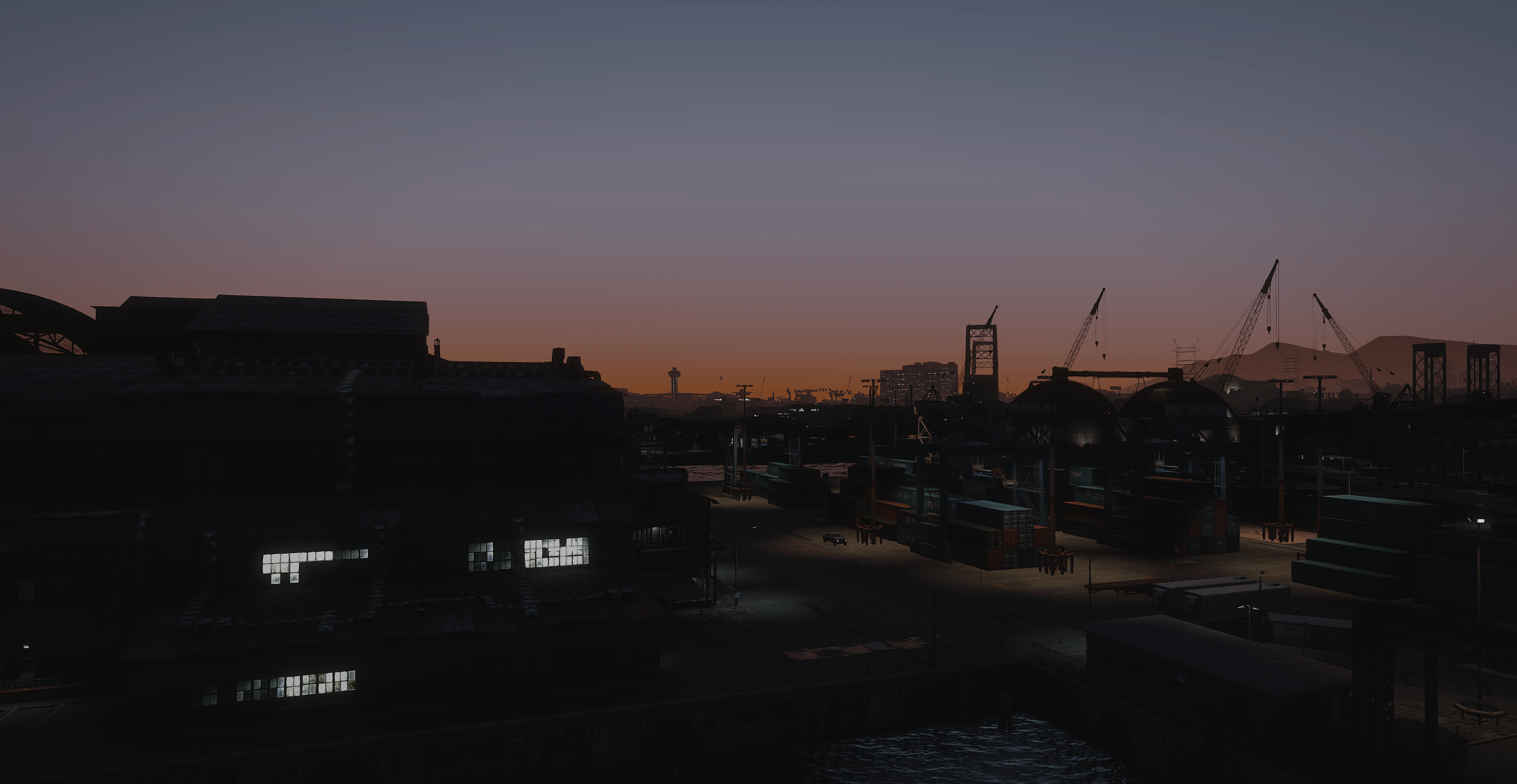
How to Download and Install FiveM Graphics (U1D GFX Complete Guide)
If you want to achieve ultra-realistic visuals in FiveM, installing a premium graphics pack like U1D GFX is essential. This guide provides a complete walkthrough on how to properly install, configure, and optimize your graphics for the best performance and visuals.
For more graphics packs, visit our main collection:
U1D GFX is a high-quality FiveM graphics enhancement pack designed to improve lighting, weather, textures, and overall realism while maintaining strong performance.
Features:
- Realistic lighting and reflections
- Enhanced weather and sky systems
- Cinematic color grading
- Optimized performance presets
- Optional addons for customization
Learn more about our latest updates:
Requirements Before Installation
Before installing, ensure you have:
- GTA V installed and working
- FiveM installed
- A mid-to-high-end PC for best performance
- WinRAR or 7-Zip installed
- A clean FiveM installation (recommended)
Step 1: Download U1D GFX
- Visit the official store
- Choose your preferred graphics version
- Download:
- Main graphics pack
- Addons
- Presets/config files
Download here:
Step 2: Locate Your FiveM Folder
Press:
Win + R
Type:
%localappdata%\FiveM
Open:
FiveM.app
Step 3: Install U1D GFX (Main Files)
- Extract your downloaded files
- Open the extracted folder
- Drag all contents into:
%localappdata%\FiveM\FiveM.app\
- Replace files if prompted
Step 4: Install Addons (Important)
U1D GFX includes optional addons such as:
- FPS boost versions
- Ultra presets
- Color filters
- Weather upgrades
Installation:
- Open the Addons folder
- Select ONE preset
- Drag files into:
FiveM.app\mods
or
FiveM.app\citizen
Important:
- Do not install multiple presets at once
- Avoid mixing with other graphics packs
Step 5: Install ReShade (Optional)
ReShade enhances visuals with advanced effects.
Steps:
- Download ReShade from the official website
- Run installer and select FiveM.exe
- Choose DirectX 10/11/12
- Install all shaders
After installation, you will see:
- dxgi.dll
- ReShade.ini
Open in-game menu with:
F8
Step 6: Enable Mods
Open:
CitizenFX.ini
Ensure:
[Game]
ModFolder=mods
ReShadeEnable=1
Step 7: Clear Cache
Navigate to:
FiveM Application Data > cache
Delete all files inside the cache folder.
This prevents conflicts and ensures proper loading.
Step 8: Launch FiveM
Start FiveM and join a server.
You should now see:
- Improved lighting
- Enhanced realism
- Better shadows and reflections
Video Installation Guide
U1D GFX Installation Tutorial
https://www.youtube.com/watch?v=iNcvgmi66dI
Full FiveM Graphics Setup Guide
https://www.youtube.com/watch?v=_LUq67NEGVU&t=6s
Common Issues and Fixes
Graphics Not Showing
- Verify files are in FiveM.app
- Reinstall graphics pack
- Clear cache again
Game Crashing
- Remove other graphics mods
- Perform a clean reinstall
- Avoid stacking packs
Low FPS
- Use performance preset
- Lower in-game graphics settings
- Disable heavy ReShade effects
ReShade Not Opening
- Press F8
- Reinstall ReShade
- Check configuration file
Optimization Tips
- Use only one graphics pack
- Keep GPU drivers updated
- Adjust FiveM settings for balance
- Test different presets
Related Guides (Internal Links)
Improve your setup with these guides:
Installing U1D GFX correctly can completely transform your FiveM gameplay experience. By following this guide, you ensure:
- Proper installation
- Maximum visual quality
- Stable performance
Take your time, follow each step carefully, and enjoy a next-level FiveM experience.