Low-End PC? Here’s How to Improve GTA V Graphics Without Losing FPS

U1D Team
February 15, 2026 · 6 min read
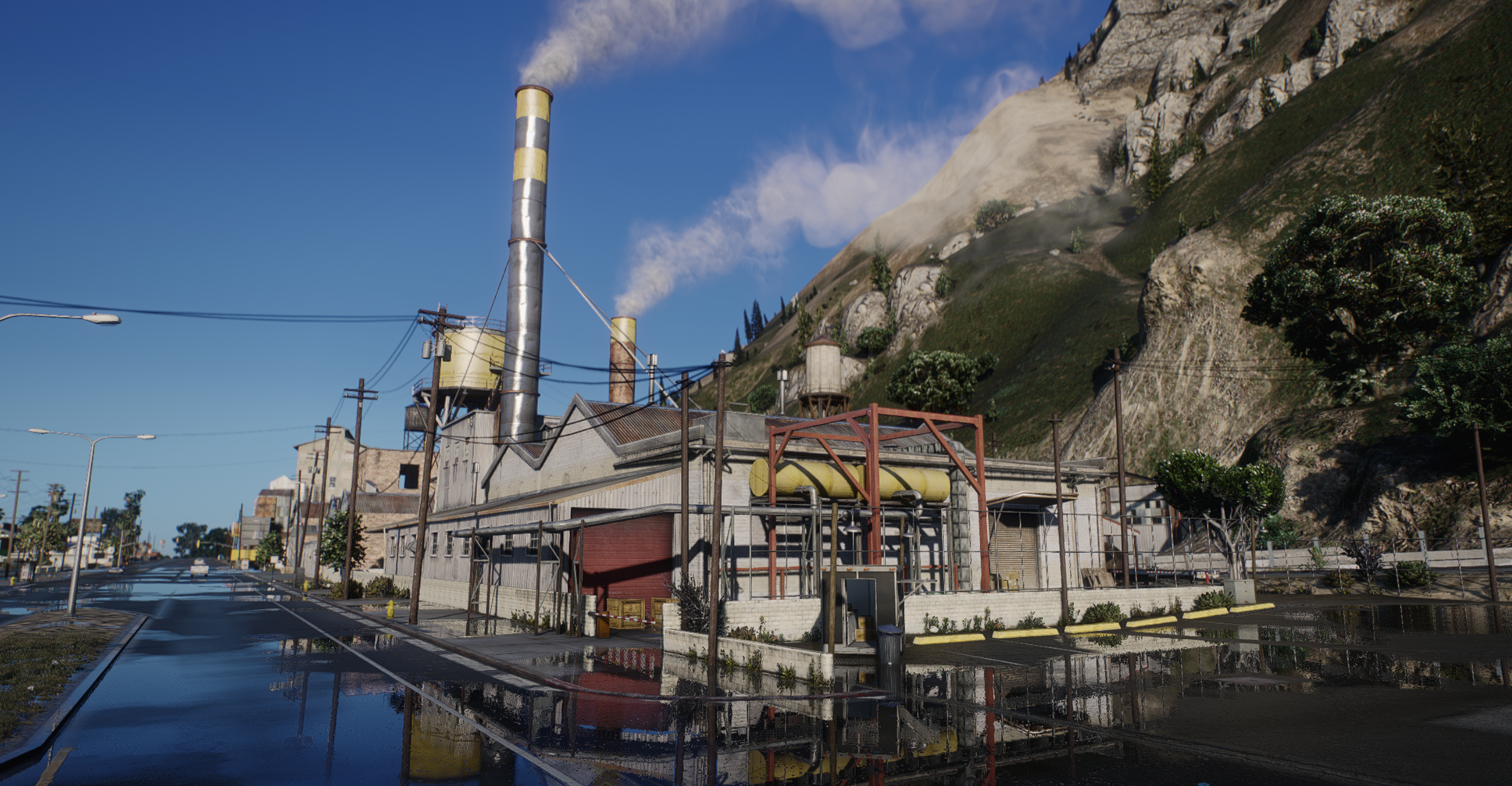
Grand Theft Auto V is nearly a decade old, yet it remains one of the most visually demanding open-world games — especially once you start adding graphics mods. If you’re running a low-end or mid-range PC, you’ve probably experienced the frustration:
- Stuttering during high-speed driving
- FPS drops in downtown Los Santos
- Input lag during gunfights
- Overheating after installing “realistic” graphics mods
The good news is this: you do not need a high-end GPU to make GTA V look significantly better. The key is understanding how to balance performance-heavy settings with smart visual enhancements — and using optimized graphics solutions like U1D Remastered.
This guide breaks down exactly how to save FPS while achieving a clean, cinematic look.
Why Most Graphics Mods Destroy Performance
Before optimizing, it’s important to understand what usually causes frame drops.
Most realism-focused GTA V graphics mods increase:
- Shadow resolution
- Reflection quality
- Volumetric lighting
- Extended distance scaling
- High-resolution texture packs
- Complex ENB or reshade pipelines
These changes stack together. On a low-end GPU (GTX 1060, RX 580, integrated graphics, etc.), that stacking effect overwhelms VRAM and GPU bandwidth.
The result is unstable FPS and inconsistent frame pacing.
The solution is not “more graphics.” The solution is smarter graphics.
Step 1: Optimize Core GTA V Settings First
Before installing any visual overhaul, you need a stable performance baseline.
Disable or Lower These Immediately
These settings have the highest FPS impact:
- MSAA (turn off completely)
- Reflection MSAA (off)
- Extended Distance Scaling (low or off)
- Extended Shadows Distance (low)
- Grass Quality (normal or low)
- Advanced Graphics settings (mostly off)
Keep These Moderate
These settings give visual improvement without heavy performance cost:
- Texture Quality (Normal or High depending on VRAM)
- Shader Quality (High if possible)
- Post FX (High for better lighting)
- Anisotropic Filtering (8x or 16x, low impact)
After adjusting these, test your FPS in downtown Los Santos. You want a stable baseline (for example, 60 FPS locked or 45+ stable if on lower hardware).
Now you’re ready for visual enhancement.
Step 2: Use Lightweight Visual Enhancement Instead of Heavy ENB
This is where most players go wrong.
Heavy ENB presets:
- Stack multiple shaders
- Add aggressive bloom
- Increase GPU load by 20–40%
- Cause memory spikes
Instead of brute-force realism, you want refined color correction, lighting enhancement, and atmospheric adjustments that don’t overhaul the rendering engine.
That’s exactly where U1D Remastered comes in.
What Is U1D Remastered?
U1D Remastered is a performance-conscious GTA V visual enhancement designed to deliver a cinematic, modern look without destroying frame rate.
Unlike traditional heavy graphics mods, U1D focuses on:
- Optimized color grading
- Balanced contrast curves
- Realistic lighting tones
- Natural shadow depth
- Clean, non-overprocessed image clarity
- Low GPU overhead
It enhances what’s already there instead of rebuilding the engine.
The result is a sharper, more immersive GTA V that maintains playable FPS on lower-end systems.
Why U1D Remastered Performs Better
1. No Overloaded Shader Stack
U1D avoids excessive post-processing layers. Instead of stacking bloom, depth of field, lens distortion, and cinematic filters all at once, it carefully refines GTA V’s native rendering.
That means:
- Lower GPU usage
- Stable frame pacing
- No random micro-stutters
2. Optimized for Real Gameplay
Many presets are built for screenshots, not gameplay. U1D Remastered is tuned for:
- Driving at high speeds
- FiveM roleplay servers
- PvP scenarios
- Streaming
This means no sudden lighting spikes when weather changes or when entering city density zones.
3. Balanced Lighting Instead of Artificial Brightness
Over-bright mods increase perceived realism but reduce clarity in combat and night scenes. U1D focuses on:
- Natural sun warmth
- Controlled highlight bloom
- Deep but readable shadows
- Realistic night visibility
You get atmosphere without sacrificing playability.
Step 3: Pair U1D Remastered With Smart FPS Tweaks
For maximum efficiency, combine U1D Remastered with the following tweaks:
Lock Your FPS
Use:
- NVIDIA Control Panel frame limiter
- RTSS (RivaTuner)
- In-game V-Sync (if needed)
A locked 60 FPS feels smoother than fluctuating 70–45 FPS.
Use Resolution Scaling Strategically
Instead of lowering overall resolution:
- Keep native resolution
- Slightly lower resolution scaling (e.g., 0.90–0.95)
This saves GPU power while keeping the image sharp — especially with U1D’s color clarity.
Disable Background Overlays
Close:
- Discord overlay
- GeForce overlay
- Xbox Game Bar
- Chrome tabs
Low-end systems benefit significantly from freeing up memory.
Step 4: Optimize for FiveM (If Applicable)
FiveM can be more demanding than story mode.
To maintain FPS with U1D Remastered:
- Lower population density
- Reduce texture streaming load
- Avoid ultra-high custom vehicle packs
- Clear cache regularly
Because U1D doesn’t overload shaders, it pairs well with FiveM servers where stability matters.
Realistic Visual Gains Without Hardware Upgrades
Here’s what you can realistically expect:
On a GTX 1060 / RX 580 class GPU:
- Heavy ENB preset: 35–45 FPS average
- Vanilla optimized: 60 FPS average
- Optimized + U1D Remastered: 55–60 FPS average with significantly improved visuals
You retain nearly all of your performance while achieving a cleaner, modernized look.
That’s the difference between aesthetic enhancement and engine overload.
Who U1D Remastered Is Best For
U1D Remastered is ideal for:
- Low to mid-range PC users
- FiveM roleplay players
- Content creators who need clean visuals without lag
- Players who prefer gameplay over screenshot presets
- Streamers who want stable frame delivery
It is not designed to turn GTA V into a path-traced tech demo. It is designed to enhance realism responsibly.
Final Thoughts
Improving GTA V graphics on a low-end PC is not about installing the most extreme realism mod available. It’s about balance.
Start with smart in-game settings.
Avoid performance-killing shader stacks.
Use optimized visual enhancements like U1D Remastered.
With the right setup, you can achieve:
- Cleaner lighting
- Better color depth
- More cinematic atmosphere
- Stable, playable FPS
You don’t need a high-end GPU to make Los Santos look modern. You just need the right optimization strategy.